Getting started
Getting started from the dashboard
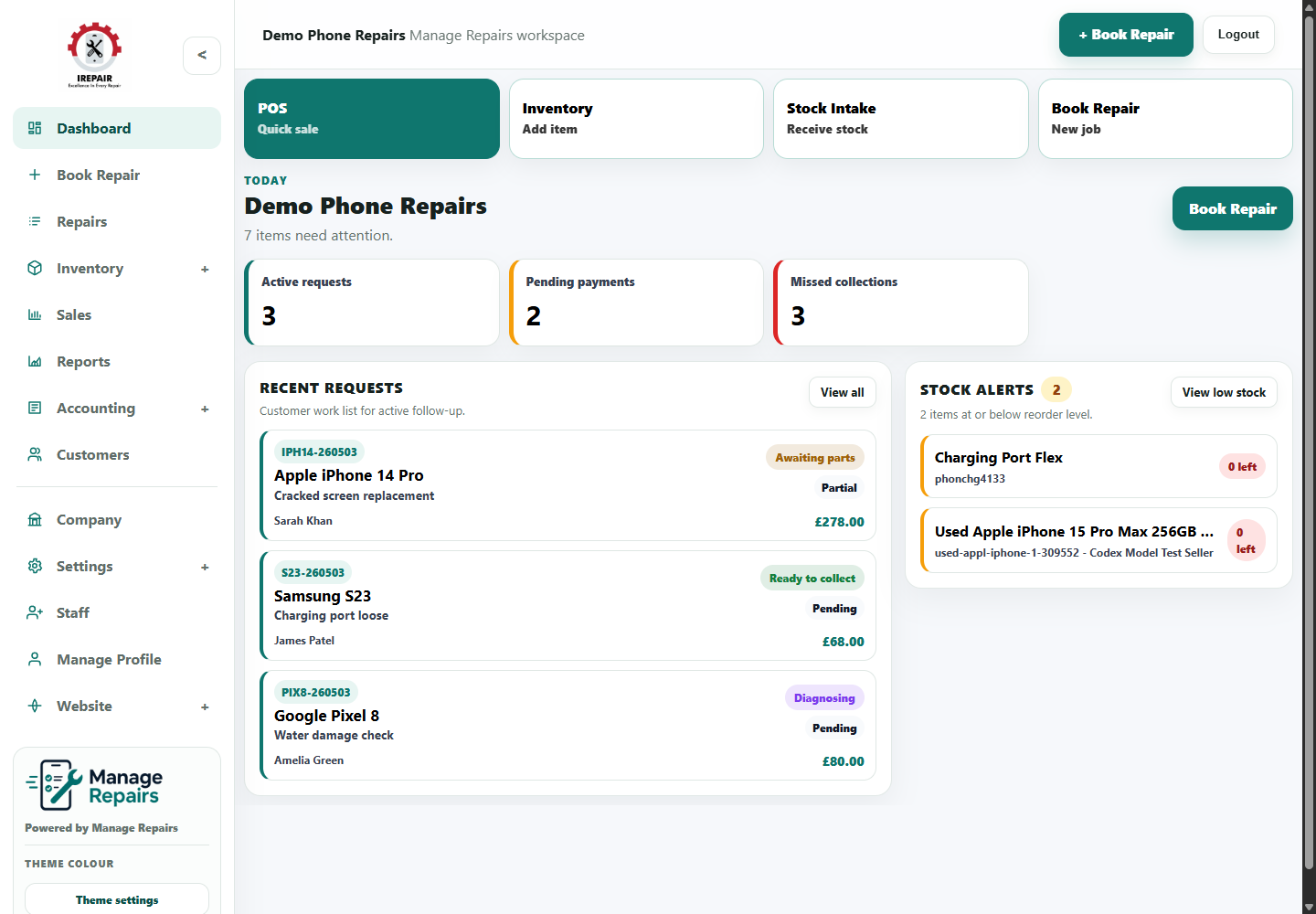
Use the dashboard to see today's repair work, quick actions, setup prompts and the main menu.
Before you start
The dashboard is the first screen after login. It gives the shop a quick view of repairs, stock, sales prompts and the main actions staff use during the day.
Step-by-step
- Log in to your Manage Repairs workspace.
- Use the left menu to open repairs, inventory, POS, reports, accounting, customers, website tools or settings.
- Use the top button to book a new repair when a customer arrives.
- Review the dashboard cards for jobs, stock and workspace prompts that need attention.
- Open the relevant section from the dashboard or sidebar and continue the task from there.
Good to know
Keep the sidebar open on larger screens so staff can move quickly between repairs, POS and inventory.
Use the dashboard at the start of the day to see what needs attention before serving customers.