Team
Add staff and manage access
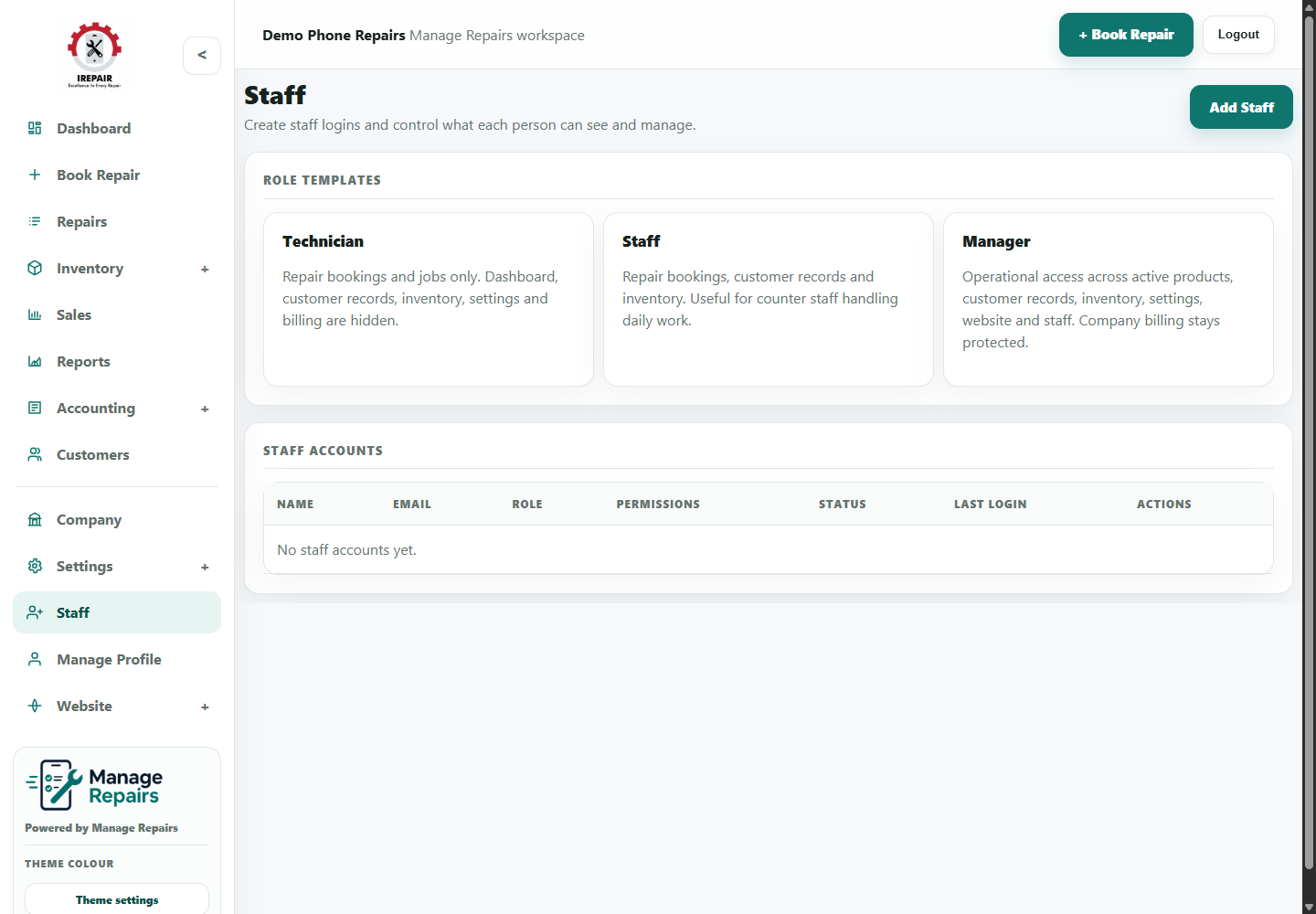
Create staff users and control which parts of the workspace each person can access.
Before you start
Staff access lets the owner keep the workspace secure while giving team members the tools they need.
Step-by-step
- Open Staff from the sidebar.
- Choose Create or Add Staff when adding a new team member.
- Enter the staff member's name, email and login details.
- Choose the permissions that match their role.
- Save the staff member and share login details through a secure channel.
- Review access when a person changes role or leaves the business.
Good to know
Give staff the access they need, but avoid unnecessary admin permissions.
Review staff users regularly as the business grows.