Inventory
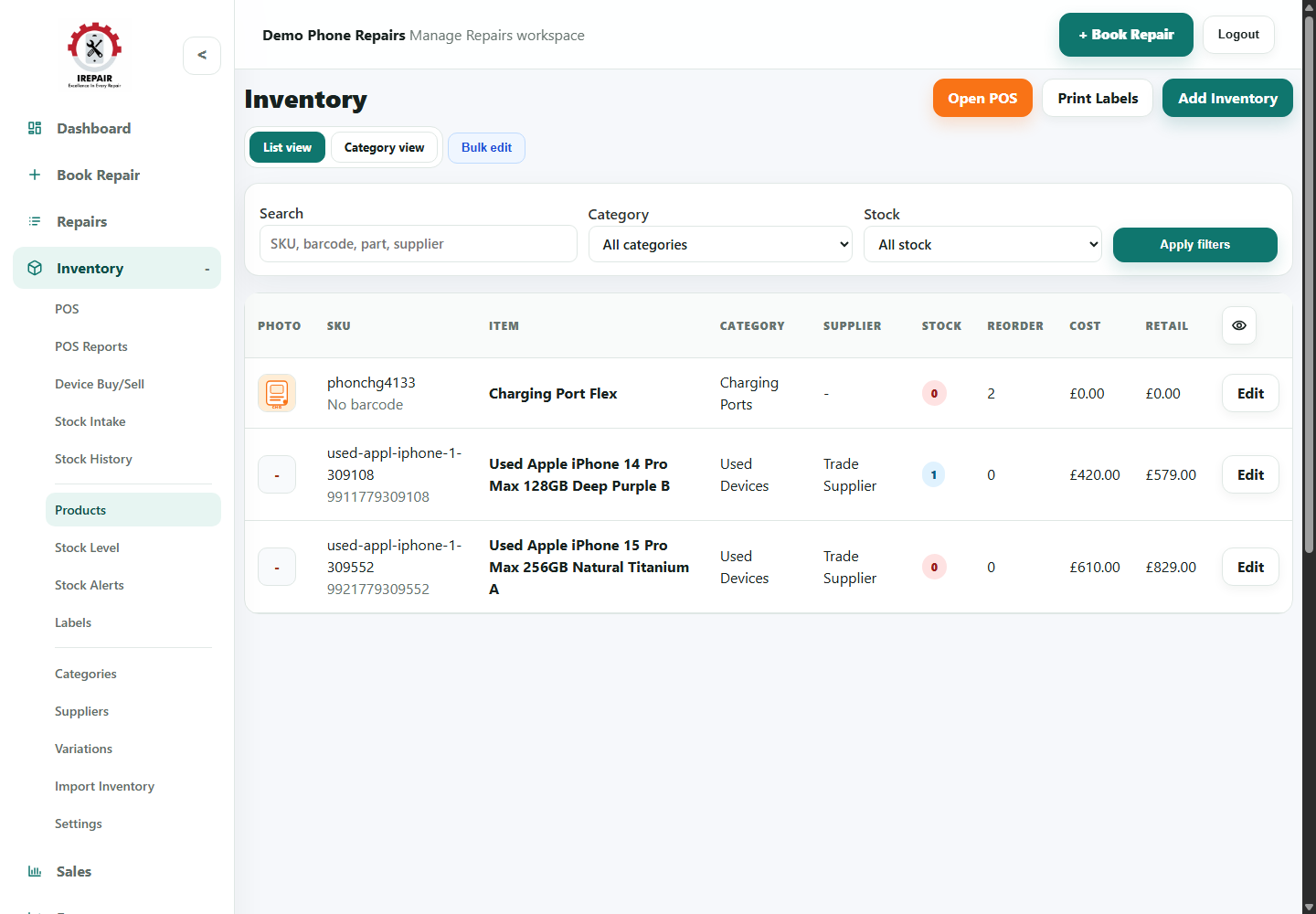
Use stock intake and stock history
Receive new stock, update quantities and keep a clearer record of stock movement.
Before you start
Stock intake helps the shop update quantities when deliveries arrive. Stock history gives owners a clearer trail of what changed.
Step-by-step
- Open Inventory and choose Stock Intake.
- Search for the product being received.
- Enter the received quantity and any useful supplier or batch notes.
- Save the intake so the product quantity updates.
- Use Stock History to review previous quantity changes when checking discrepancies.
Good to know
Receive stock before selling it through POS so stock levels stay accurate.
Use supplier notes when a delivery contains several similar parts.