Website
Manage website tools
Control shop website pages, navigation, products, orders, enquiries, payments, domain, theme and settings.
Before you start
Website tools help the shop show information online and, where enabled, sell products using the same inventory records.
Important sections on this page
Use these focused screenshots when matching the guide to the real screen.

Website link and status
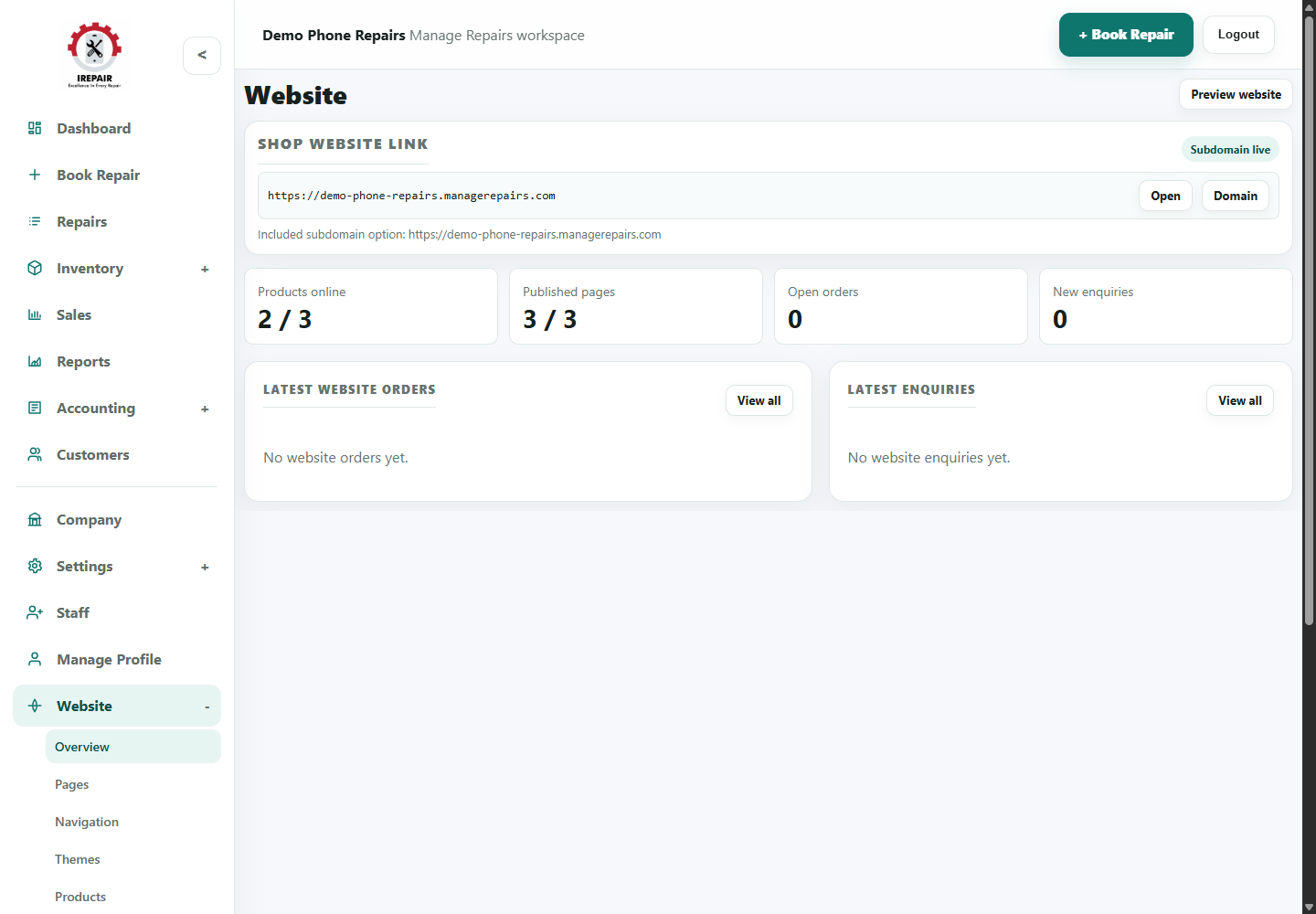
The link area shows the shop website address and whether the subdomain is live.
- Use Open to preview the current shop website.
- Use Domain when preparing a custom domain.
- Check the status badge before sharing the website link.

Website activity numbers
The summary cards show website product, page, order and enquiry activity.
- Products online shows how many inventory items are published.
- Published pages shows whether key website pages are live.
- Orders and enquiries help staff spot online customer activity.

Orders and enquiries
The lower panels help staff review the latest online activity without leaving the overview.
- Use View all when the shop has more online activity.
- Check enquiries regularly so customers are answered quickly.
- Keep online products and POS inventory aligned.
Step-by-step
- Open Website from the sidebar.
- Use Overview to check the website status and main setup areas.
- Use Pages to edit content such as home, services or information pages.
- Use Navigation to control menu links.
- Use Themes to adjust the look of the shop site.
- Use Products to decide which inventory items appear online.
- Use Orders, Enquiries and Payments to handle customer activity from the website.
- Use Domain and Settings when connecting the shop website to a live address.
Good to know
Keep website product names and prices aligned with POS inventory.
Check enquiries regularly so online customers are not missed.