Book a repair job
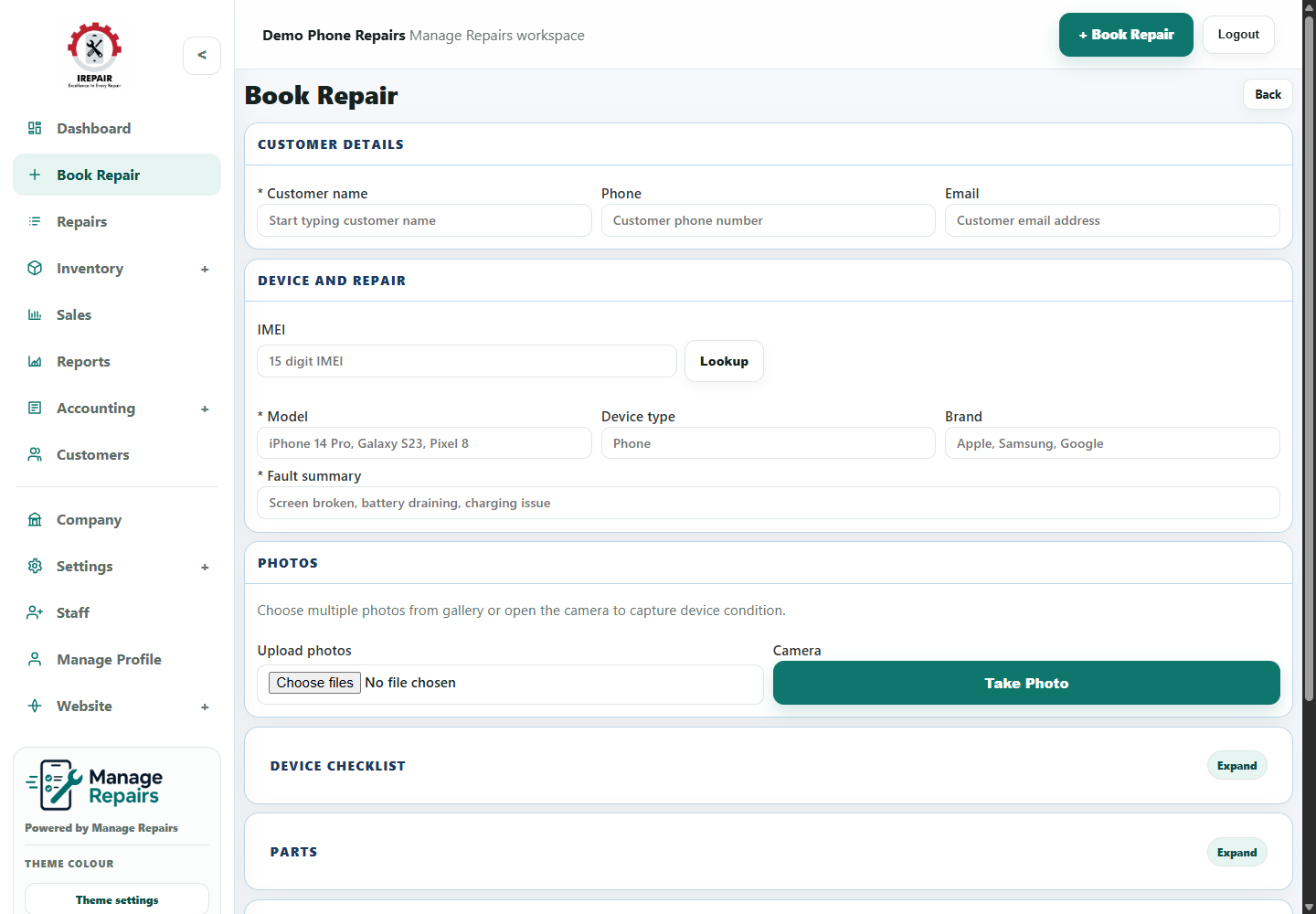
Create a repair ticket with customer details, IMEI, model, fault notes, photos, checklist items and parts.
Before you start
A repair ticket should capture enough detail for the technician and for the customer handover later. The booking form is designed for counter staff to record the customer, device and fault clearly.
Important sections on this page
Use these focused screenshots when matching the guide to the real screen.

Customer details
Start with the customer record so the repair can be found later by name, phone number or email.
- Customer name is required because it appears on the ticket and repair history.
- Phone number is useful for collection calls and SMS updates.
- Email can be added when the customer wants written updates or receipts.
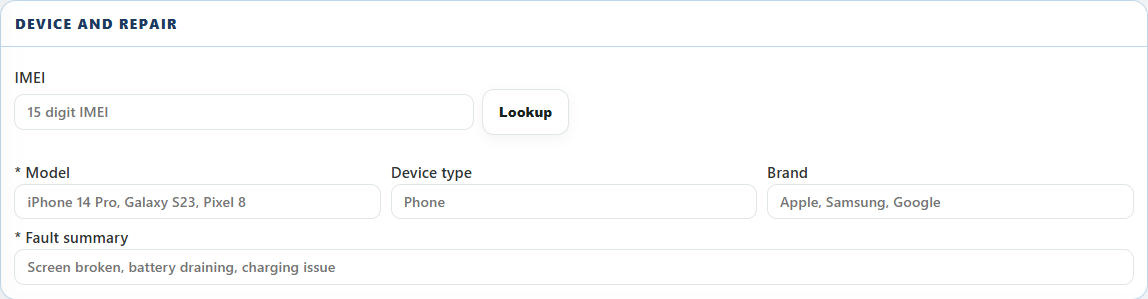
Device and fault details
Use this section to record the device identity and the reason it has come in for repair.
- Add IMEI or serial details when they matter for the repair or customer record.
- Keep the model and brand clear enough for parts and technician notes.
- Write the fault summary in plain words staff will understand quickly.
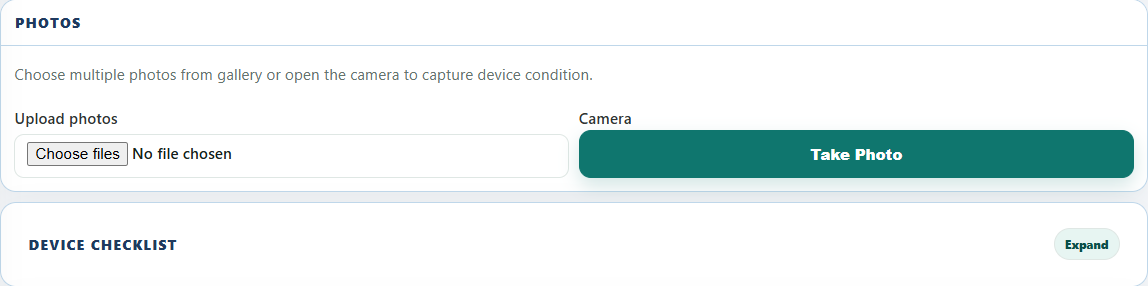
Photos and checklist
Photos and checklist notes protect the shop by recording condition before work starts.
- Upload visible damage photos at intake where possible.
- Use checklist items for condition checks such as screen, buttons, charging and cameras.
- Add parts or collection details when they are already known.
Step-by-step
- Open Book Repair from the sidebar or the top action button.
- Enter the customer name, phone number and email address where available.
- Record the IMEI or serial details when the device type needs it.
- Add the model, device type, brand and a short fault summary.
- Upload condition photos or use the camera button if the device is in front of you.
- Expand the device checklist and mark any important condition checks.
- Add expected collection date, quote amount, payment details or parts if those are known at intake.
- Save the repair so it appears in the repairs list and customer history.
Good to know
Keep the fault summary short and practical, for example "screen broken" or "charging issue".
Use photos for visible damage so collection conversations are easier later.