Manage repair jobs and statuses
Find jobs, filter repairs, update statuses, record payments, send links and keep the repair history tidy.
Before you start
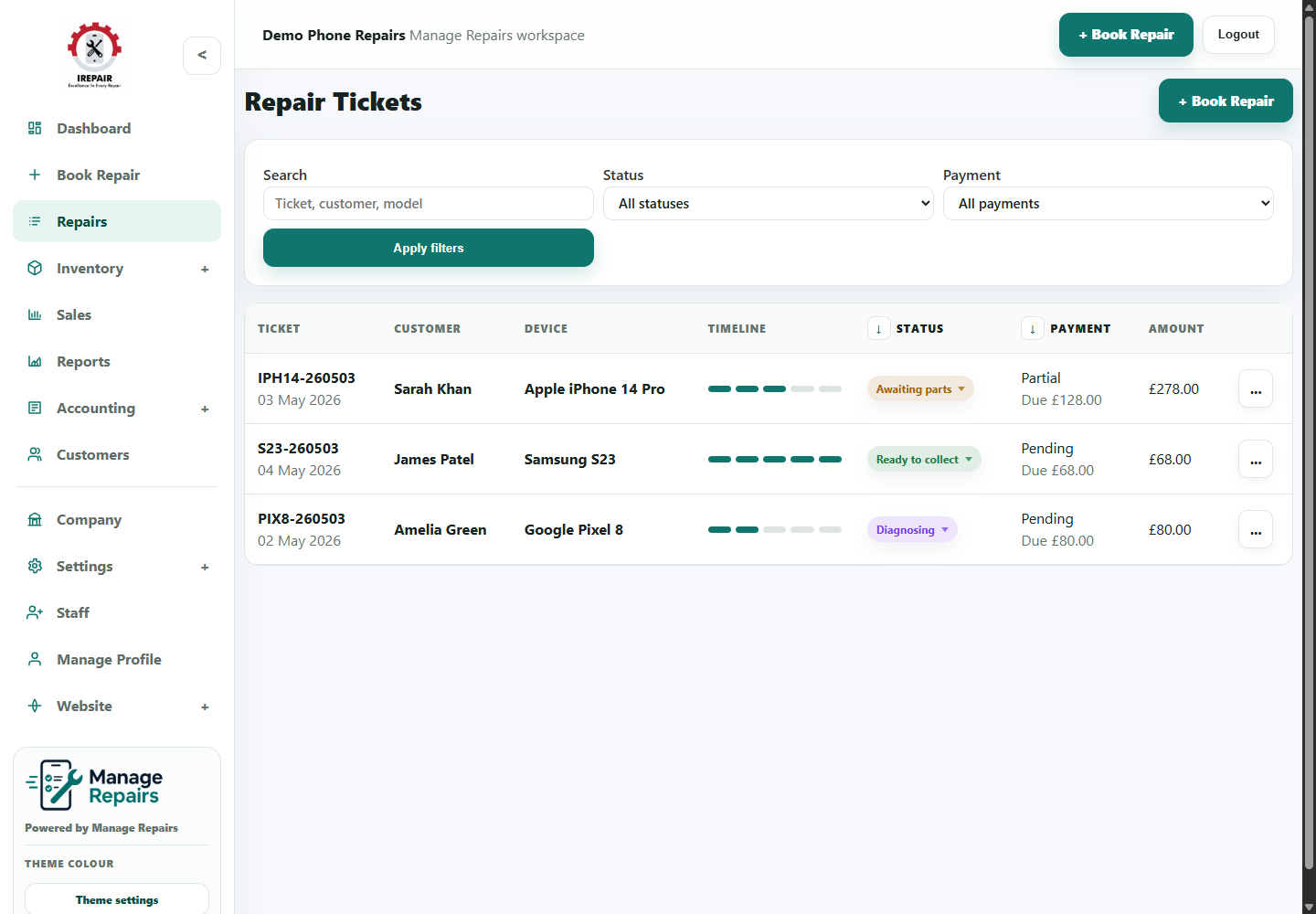
The repairs list is the working queue for the shop. Staff can search by customer, ticket, device or status, then open the repair to update the job.
Important sections on this page
Use these focused screenshots when matching the guide to the real screen.

Search and filter repair tickets
Use the top filters to reduce the queue before opening a job. This is faster than scrolling through every ticket.
- Search by ticket, customer or model when the customer is at the counter.
- Filter by status to focus on jobs waiting for parts, diagnosis or collection.
- Filter by payment when checking balances or deposits.
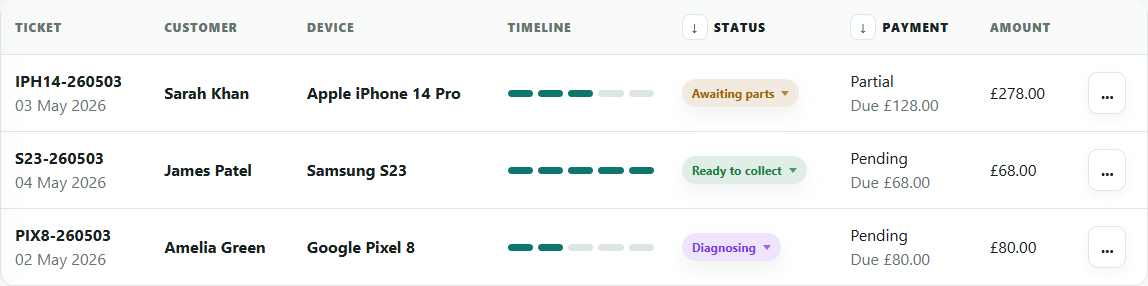
Read the repair queue
Each row gives staff the main job information without opening the full repair record.
- Ticket number and date help match the physical device to the record.
- Customer and device columns help staff confirm they have the right job.
- Timeline, status and payment columns show what needs attention next.
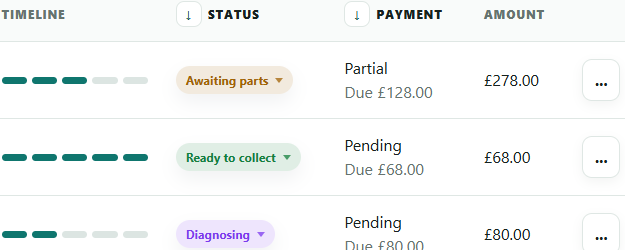
Status, payment and actions
The right side of the repair row is where staff can quickly spot collection readiness, money due and available actions.
- Use status badges consistently so reports and customer updates stay meaningful.
- Check payment due before releasing a device.
- Use the action menu to open the right next task for that repair.
Step-by-step
- Open Repairs from the sidebar.
- Use search or filters to find the right ticket.
- Open the repair row to view full details and history.
- Update the repair status as the job moves through diagnosis, quote, repair and collection.
- Record payments or balances when the customer pays a deposit or final amount.
- Send tracking or quote approval links when customer communication is needed.
- Keep notes clear so another staff member can continue the job without asking again.
Good to know
Use consistent statuses so reports and customer updates stay useful.
Do not delete old repair history just because the repair is collected. The history helps with repeat visits.
Options and limitations
Options
- Use list view when staff need a table with filters, payments, customer details and actions.
- Use Kanban view when staff want to move jobs visually between statuses.
- Use customer popovers from repair rows to quickly check contact details and order count.
Limitations
- Changing a repair status should still match the shop workflow; do not use statuses as private notes.
- Customer communication depends on valid customer phone/email details and the shop message settings.