Inventory
Add and manage inventory products
Create products for parts, accessories, devices and services with stock, price, supplier and category details.
Before you start
Inventory holds the items your shop sells or uses in repairs. Products can be parts, accessories, used devices, services or other stock items.
Important sections on this page
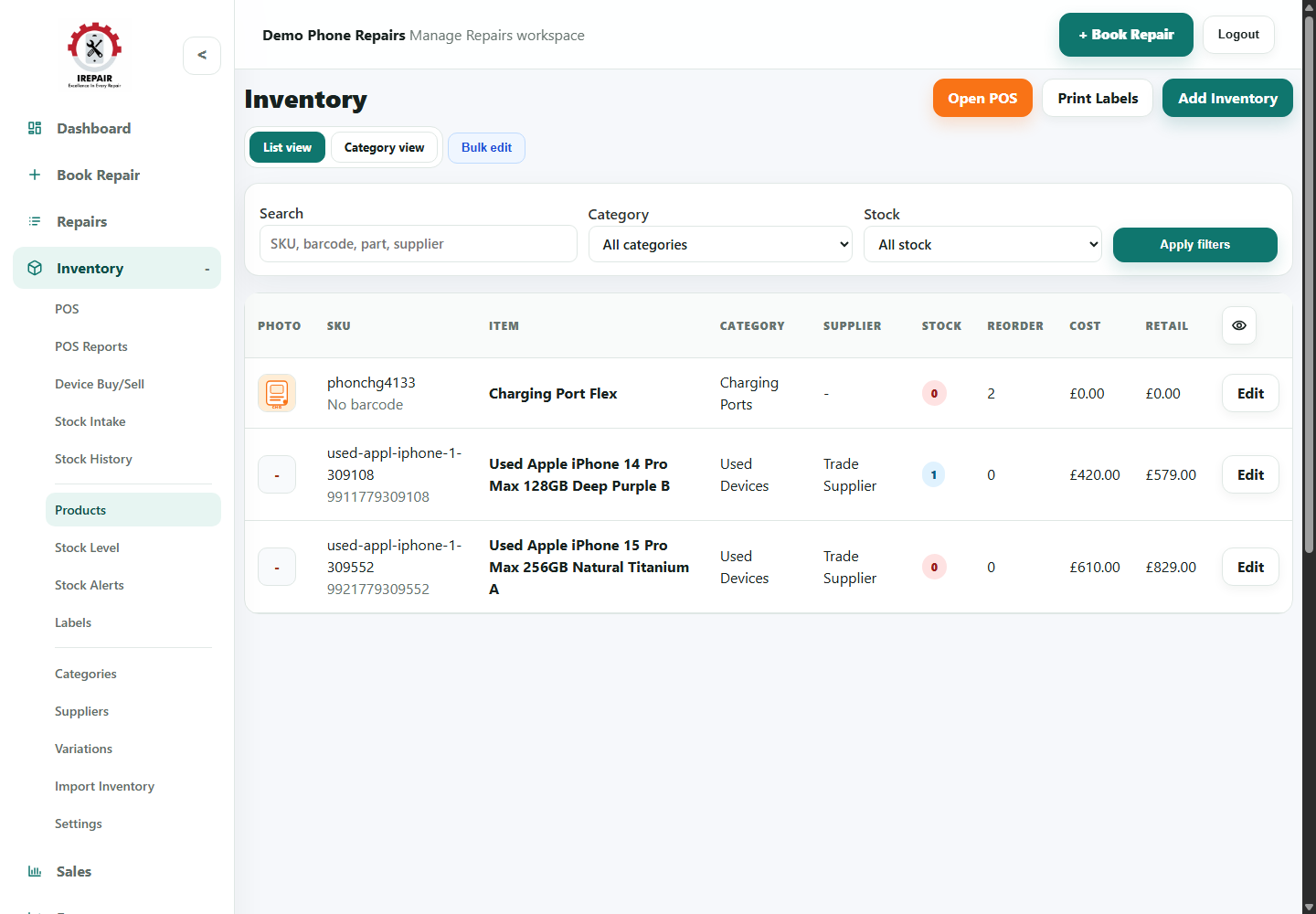
Use these focused screenshots when matching the guide to the real screen.

Inventory actions
The top controls help staff move from inventory into POS, labels or product creation.
- Open POS when a stock item needs to be sold.
- Print Labels when products need shelf or barcode labels.
- Add Inventory when a new item needs to be created.

Find the right stock item
Filters make stock checks quicker when the product list grows.
- Search by SKU, barcode, part name or supplier.
- Filter by category when checking a family of parts or accessories.
- Use stock filters when reviewing low or out-of-stock items.
Review product rows
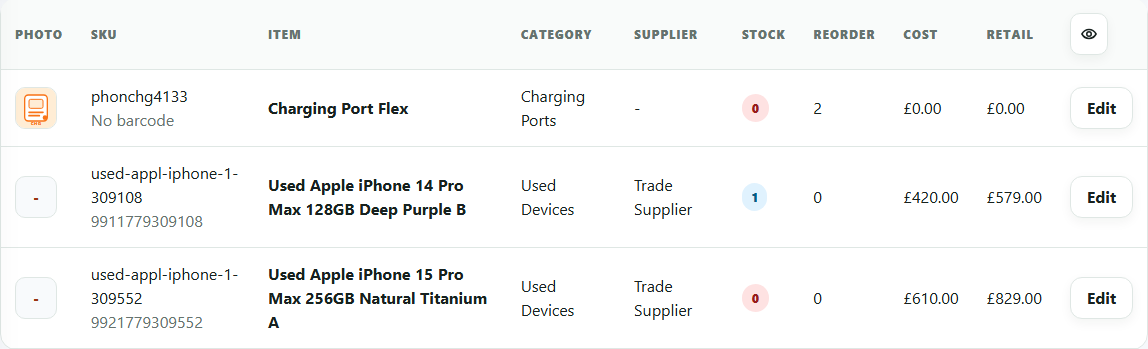
The product table shows the details owners normally need for stock control and pricing decisions.
- Check stock and reorder columns during buying decisions.
- Compare cost and retail columns to spot pricing mistakes.
- Open Edit when the product details, supplier or price needs changing.
Step-by-step
- Open Inventory from the sidebar.
- Use List view to review products, stock level, cost and retail price.
- Use filters to search by SKU, barcode, part name, supplier, category or stock level.
- Choose Add Inventory to create a new product.
- Add a clear product name, SKU, category, supplier, quantity, reorder level, cost and retail price.
- Save the product so it can be used in repairs, POS and website tools where relevant.
Good to know
Use categories consistently so POS, labels and stock alerts are easier to manage.
Set reorder levels for important parts that should not run out.