Repairs
Use the repair Kanban board
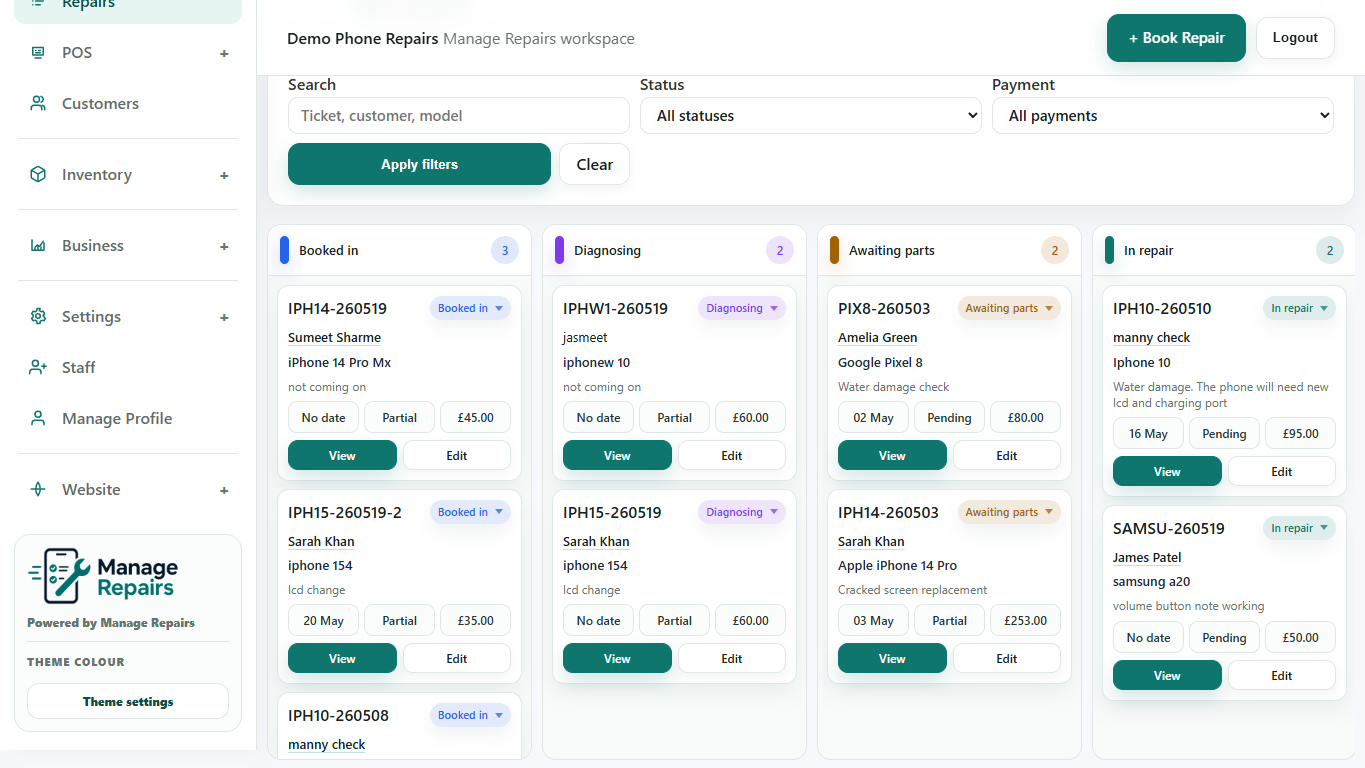
Drag repair cards between status columns, reorder work inside a column and hide optional columns.
Before you start
The Kanban board is for shops that prefer to manage repairs visually. It uses the same repair records as the list view, but groups jobs by workflow status.
Step-by-step
- Open Repairs from the sidebar.
- Switch to Kanban view.
- Drag a repair card into another status column to update the repair status.
- Drag a card within the same column when you want to change its priority or order.
- Use the Kanban column checkboxes to hide or show optional columns such as Quote Approved and Quote Declined.
- Open a card when you need the full repair details, notes, payments, labels or customer history.
Good to know
Keep only the columns the team uses every day visible, so the board stays easy to scan.
Use list view when you need more detailed filtering or table-style comparisons.
Options and limitations
Options
- Status drag-and-drop updates the repair status.
- Same-column drag-and-drop changes the visible order or priority of cards.
- Column checkboxes let the shop hide or show less-used statuses.
- The board can be used alongside the repair list; it is not a separate set of repairs.
Limitations
- The Kanban board changes repair status/order only; it does not replace repair notes, payments or customer messages.
- Hidden columns are a display preference, not deleted statuses.
- A repair card must still be opened for detailed work such as payments, labels, parts and full notes.